Screen capture, still or moving
Select a region, window or full screen. Crosshairs and magnification guide precise selection; delay, countdown and global shortcuts help you capture the right moment.
Vectronis Grab
Capture a region, a window or your entire screen as a screenshot or a video with audio. Turn it into illustrated instructions, useful bug reports and short explanations with Vectronis Grab.
Discover Vectronis GrabFor macOS, Windows and Linux.
MCP · Model Context Protocol
The local MCP interface connects your AI assistants to Vectronis Grab’s app tools. Combine capture, image editing and sharing into connected workflows. You choose when to enable the connection and grant permission to make changes separately.
Preview / Vectronis Grab
Select a region, window or full screen. Crosshairs and magnification guide precise selection; delay, countdown and global shortcuts help you capture the right moment.
Add arrows, text, callouts, shapes, stamps and numbered steps. Crop images, magnify details and blur or pixelate selected sensitive areas.
Record with a microphone and available system-audio sources, pause and resume. Then cut precisely, add transitions and display annotations at chosen times.
Choose the quality and section of your own or authorised videos. Follow progress, cancel or resume downloads, then work in the video editor.
OCR makes text in images available to copy. Search, tags and date/type filters help you find captures; open projects preserve editable image elements.
Export images, PDFs, videos and GIFs, copy to the clipboard or share through available applications. Local MCP connects compatible AI clients to app API functions.
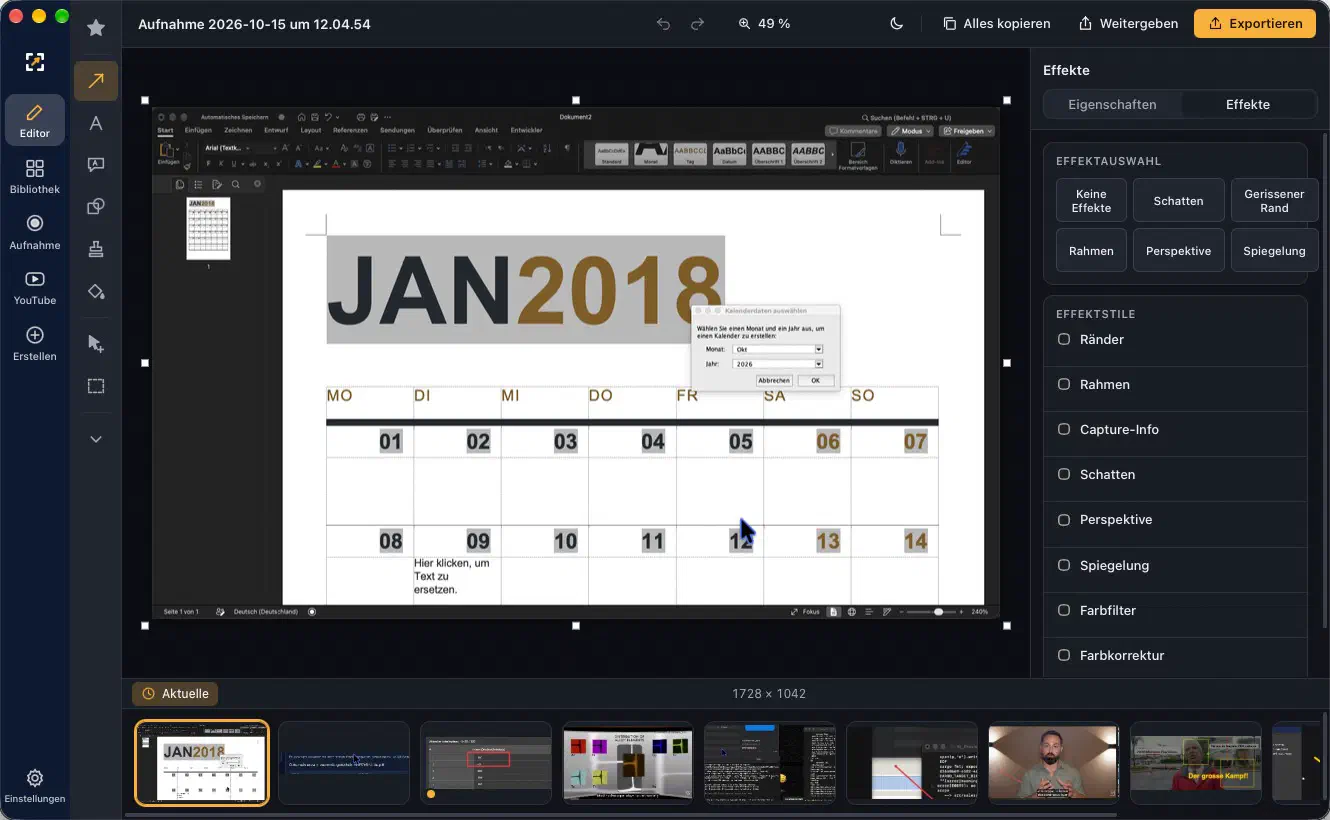
A screen capture directly in the image editor: crop, explain and refine it with effects. The effects panel on the right complements the annotation tools on the left. Shown on macOS.
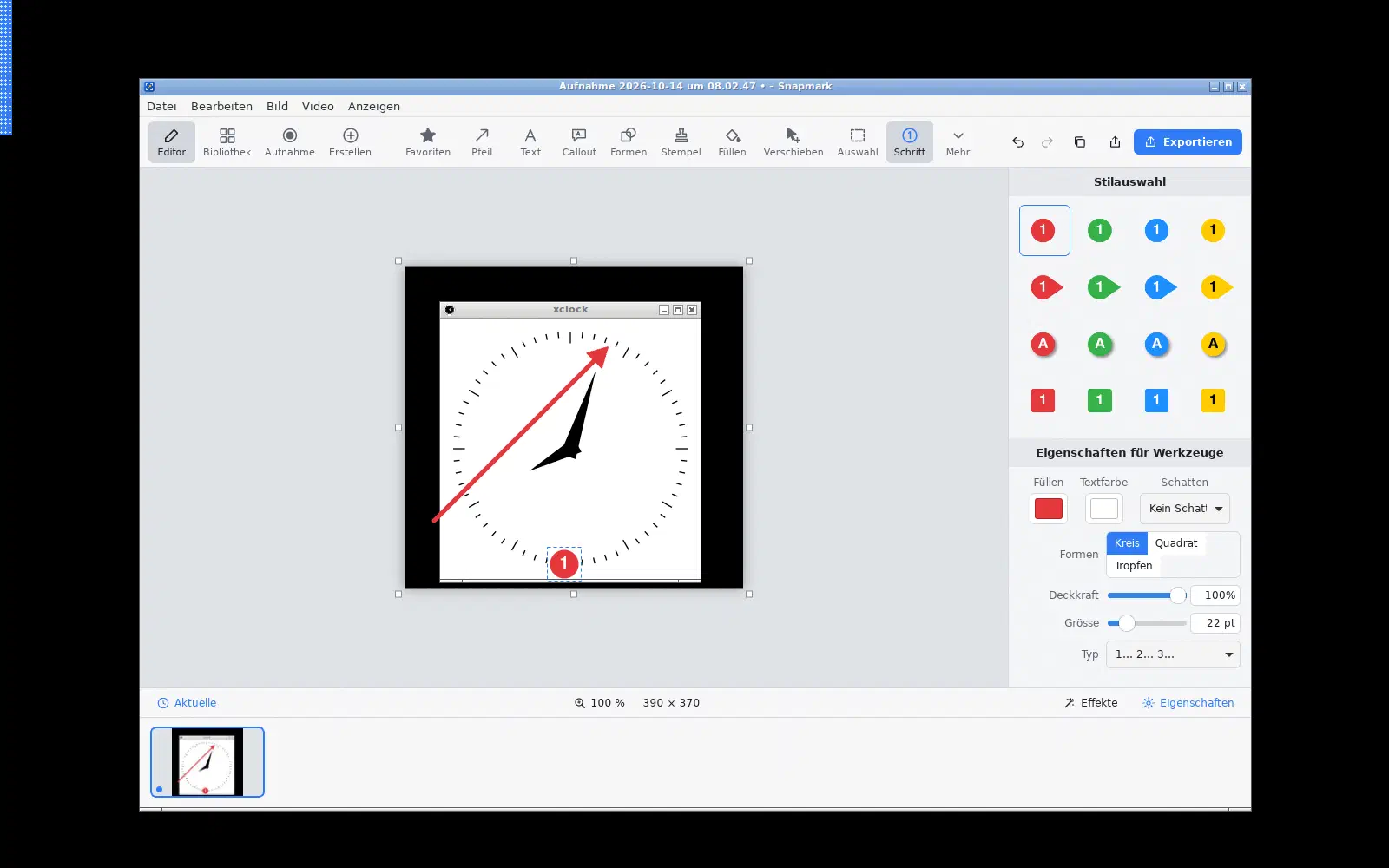
A real screen capture in the image editor, explained with an arrow and a step marker. Linux.
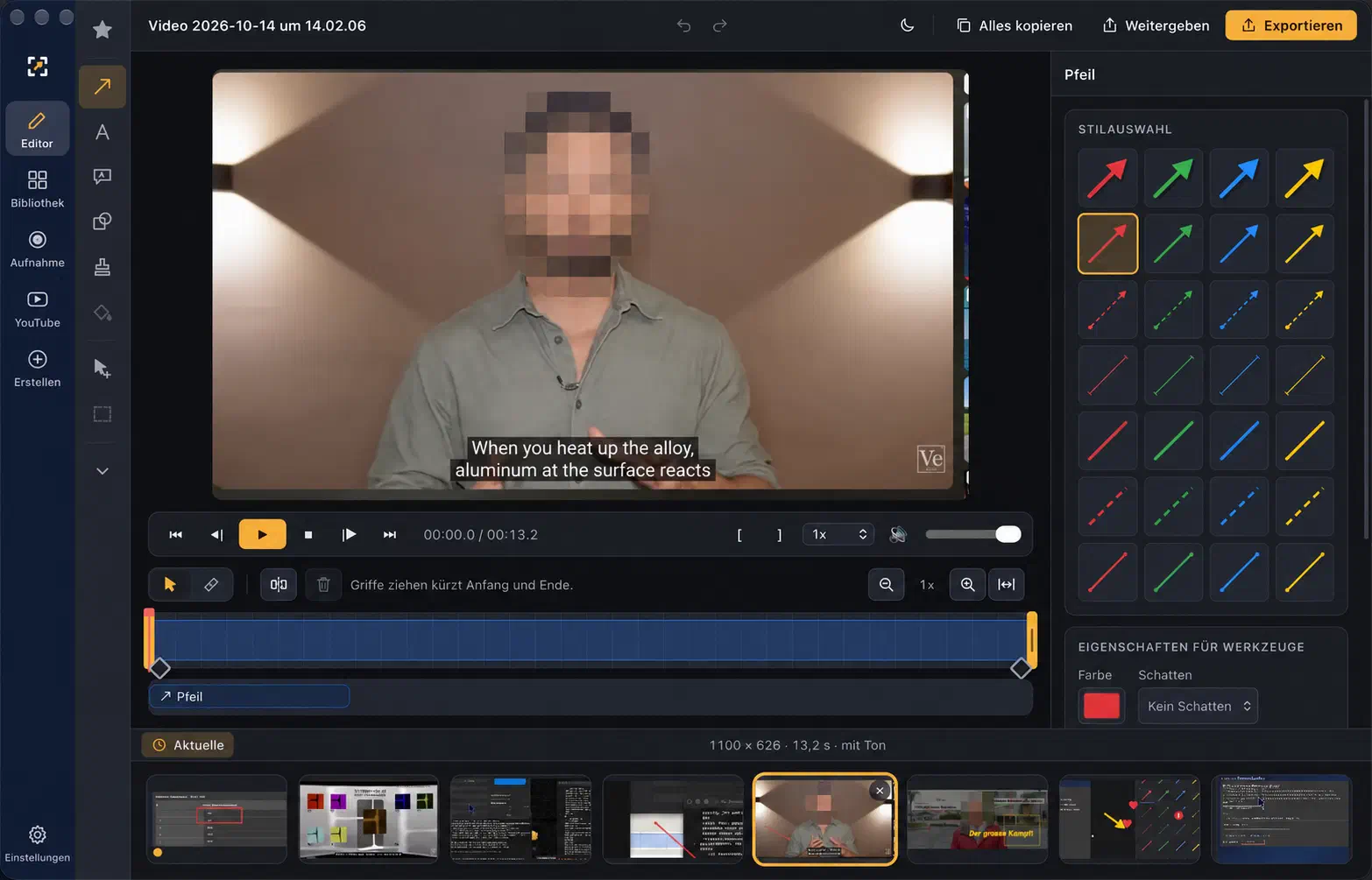
Timeline, cut markers and annotation tools in a macOS application. People have been anonymised for this image.
Document an issue, explain a task or prepare training material. Capture a custom region, a window or the full screen. Crosshairs, a magnifier, coordinates and window detection help you select precisely. A delay gives you time to open a menu. An edge-mounted capture bar and configurable global shortcuts keep capture within reach. Screenshots open in the editor and are stored in the library.
Add arrows, text, callouts, shapes, stamps, freehand lines and numbered steps. Quick styles and favourites speed up repeated annotations; adjust colour, outlines, shadows, opacity and typography. Crop, rotate or flip images, change image or canvas size, and add borders, frames and visual effects. Magnification and spotlight draw attention to details. Blur and pixelation obscure selected areas; check the final result, as complete automatic anonymisation is not guaranteed.
Explain a process while recording with a microphone. The recording bar offers start, pause, resume and stop, with a choice of frame rate, countdown and available audio sources. A dedicated macOS helper captures system audio. Windows and Linux depend on stereo-mix or monitor sources and the audio setup. Operating-system screen and microphone permissions are required.
Remove unwanted sections, set cut points and move frame by frame or through a zoomable timeline. Undo and redo support editing. Show arrows, text and other objects during selected time ranges, add transitions and fades, and burn annotations into exported video. Extract still frames or turn short clips into GIFs.
Import your own videos or content you are authorised to use. Select quality and an optional time range. Progress, cancellation and resumable downloads support longer imports; use the usual editing tools afterwards. Retrieval also depends on YouTube availability. A separate audio-only import is not implemented yet.
Recognise text in images for copying and reuse. Find captures using search, tags and type/date filters. Originals remain ordinary image and video files. Open .snapmark image projects preserve editable elements.
Export images as PNG, JPEG, WebP, GIF, BMP, TIFF or PDF as appropriate. Save video, prepare GIF excerpts or copy images to the clipboard. Sharing destinations can include files, email, cloud folders and available applications; macOS also connects to word processors and presentation applications. Destinations depend on the OS and installed software.
Optional MCP provides compatible AI clients with access to the 75 native API functions for capture, library and output workflows. Enable the local connection in settings and grant write permission separately. Interactive selections and system dialogs still require local interaction. German, English, French, Italian, Spanish, Simplified Chinese, Japanese and Korean are supported, alongside light and dark themes.